Plan on Your Computer, Travel with Itinee on Your Phone
A practical first trip: find an idea, make it yours on the web, then open the saved plan in the Android app.
Applies to: Web & Android
Inside the Itinee web planner
Make room for the day you want
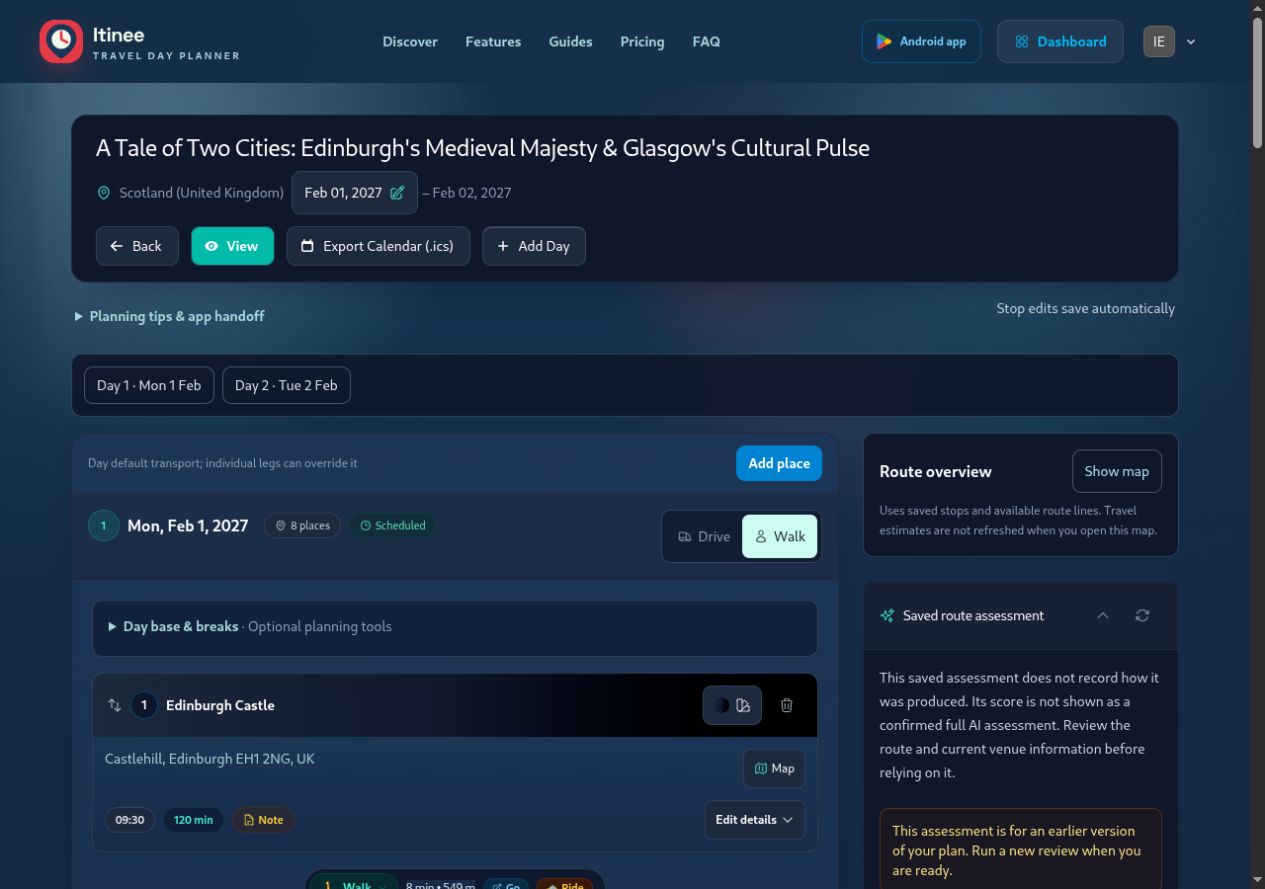
Use the larger screen to compare stops and plan your day. This is an example trip, not a booking.
1. Find a Starting Point
Browse Discover without signing in, then choose Use this trip when you want an editable copy. An account is required to save your copy. You can also choose Create a trip from My trips to begin with your own destination and dates.
- Open a Discover trip and review each day, visit duration and available connection.
- Choose Use this trip, sign in if needed, and review the dates offered for your new copy.
- Find the saved trip in My trips and choose Continue planning.
2. Set Your Dates and Shape Each Day
Check the dates before researching detailed timings. In the web editor, use the day links to move around the plan. Choose Add place to search for a location; Edit details opens a stop’s arrival time, stay duration, notes and available move controls.
- Use Edit details to choose a stay duration or enter a custom number of minutes.
- Drag a stop using its handle, or use Move up and Move down where available.
- Review later arrival times after changing a duration, order or travel mode. Check fixed bookings separately.
3. Review the Route and Add Room to Rest
Open Show map in Route overview and select a day to compare the numbered stops. This overview uses saved stops and available route lines; opening it does not request fresh travel estimates. Missing connections should be checked in your chosen navigation provider.
- Expand Day base & breaks, then Set hotel / start or end location to select and save a base for that day.
- Choose Add a meal or rest break, set its name, duration and position, then select Add break.
- Allow separately for travel around non-location breaks. Check any leave-by estimates, venue opening hours and your return journey.
4. Check Saved Changes and Prepare a Backup
Stop edits save automatically, while notes save when you leave their field. Wait for the save feedback to settle before leaving. Day locations and breaks have their own save or add buttons. If a save fails, keep the page open, reconnect and retry the affected edit.
- Use View to inspect the saved itinerary. Private trip views offer Print itinerary; your browser may offer Save as PDF in its print dialog.
- Use Export Calendar (.ics) for a separate calendar snapshot. Later itinerary edits do not update that copy automatically.
- If a date-mismatch warning appears, compare the trip dates with every day’s date before relying on the plan.
5. Open the Saved Plan on Your Phone
Sign into the same account in the Android app and refresh your saved trips while online. Open the trip and review the days you will use. Previously loaded details can be available from the local cache; opening an itinerary does not download offline maps. Prepare original tickets, navigation downloads and reminders separately. Check the download page for iOS availability.
Start with a few essential stops. Add optional visits only after reviewing travel time, meals and your return journey.
Key Takeaways
- Discover is a preview until you save your own copy.
- Use the web editor for dates, stops, day bases, breaks and route review.
- Check save feedback and fixed bookings after changing the plan.
- Printouts and calendar exports are separate snapshots.
- Use the same account and open your saved trip online before travelling.
Prague in 2 Days: Bohemian Spires to Castle Heights
Ready to travel? Open this trip in Itinee to review its map and suggested visit times.
Plan your next trip with Itinee
Use travel estimates, AI-assisted route reviews and Google Wallet passes alongside your plans.